

HTTP API sources are enabled per account. Contact the Mangrove team to turn them on.
Before you begin
Your endpoint must acceptGET or POST and return CSV or a JSON list of objects, at the top level or inside the response. If your API pages or limits its results, read One response per run first.
You’ll need:
- The base URL, path, required headers and query parameters, and any JSON body for a
POSTrequest. - Credentials, if required: a fixed key or token, or OAuth2 client credentials with a token URL and any required scope. Endpoints that receive credentials must use
https://. - How to select records: after the last value received, within a time range, or the full result every time.
- The event types to create in Mangrove.
Add an HTTP API source
The form has two columns. On the left, set up credentials, the schedule and the connection test. On the right, starting with What each run fetches, describe the request and its response.1
Choose HTTP API
In your project, go to Data Inputs > Data Feeds. Click Add Data Feed, or Add source on an existing feed, then select HTTP API. For a new feed, name it on Configure Data Feed, then continue to Configure HTTP API.Display name is optional; leave it blank to name the source after your API’s host.
2
Add credentials
Under Credentials, click Add credential for each secret your request needs and give it a name, such as
api_key. Names start with a lowercase letter and use only lowercase letters, digits and underscores. cursor_value, window_start and window_finish are reserved.Choose the Type:- Fixed key or token: Mangrove inserts the secret as it is.
- OAuth2 client credentials: enter the Token URL, Client ID, Client secret and any Scope. Mangrove obtains a token, reuses it until it expires, and inserts it into the request.
{{api_key}}, with a Copy button and how often the request uses it. Secrets are encrypted when saved, and only account admins can reveal them. Leave this section empty if your API needs no credentials.3
Choose what each run fetches
Under What each run fetches, choose Everything, every run or Only what’s new. With Only what’s new, the variables you put in the request in the next step decide whether each run continues from the last value or fetches the next time window. See Choosing what each run fetches.
4
Describe the request
Enter the Base URL, such as
https://api.example.com, choose the Method, and enter a Path relative to the base URL, without a leading slash. Add Headers, Query parameters and, for POST, a JSON Body as needed.Place variables where your API expects them, such as Authorization: Bearer {{api_key}} in a header. Available tokens lists the credentials and fetch variables you can use; click one to copy it. Variables that can’t be combined with the ones already in use are dashed. See the complete example.5
Describe the response
Choose the Response format, CSV or JSON. For JSON, set Rows are in to the path of the list, such as
data.records, or leave it empty if the whole response is the list.With Only what’s new, fill in the cursor fields that appear: Cursor column when continuing from the last value, then Cursor type and Initial cursor.Click Preview response to see up to 100 of the rows the next fetch would read. For JSON, the preview suggests paths to the lists of objects it found; if yours is nested deeper and isn’t suggested, type its dotted path into Rows are in.The preview can’t tell you whether your API returned every matching record. Check its page or row limits separately; see One response per run.6
Test the connection
Click Test connection to check the credentials and endpoint. The button is available once the form is complete; until then, the fields to fix are listed beneath it. The result shows each stage, such as Credentials and Endpoint request, and which one failed. Use Copy diagnostics when contacting support; secrets are left out.
7
Finish setup
For a new feed, click Fetch a sample on the Schema step to define the columns without importing records. If the endpoint returns no rows yet, upload an example CSV or spreadsheet instead. On Configure Result, select the event types to create, then save the feed.For an existing feed, save the source and check that its columns match the schema and transformations.
8
Run your first sync
New HTTP API sources start manual. Click Sync beside the source in the Sources table, then check its Last run, the run in Data Inputs > Data Feed Runs, and the resulting events. If the import isn’t what you expected, click Revert on the run to remove its events; see Checking progress.When you’re happy with the results, edit the source and turn on Fetch automatically in its Schedule section to fetch daily. See Scheduling.
Example: fetch readings by ID
This example API usesafter_id and order to return readings in ascending ID order. Adapt the parameter names and authentication to your API.
Create a Fixed key or token credential named api_key, then configure:
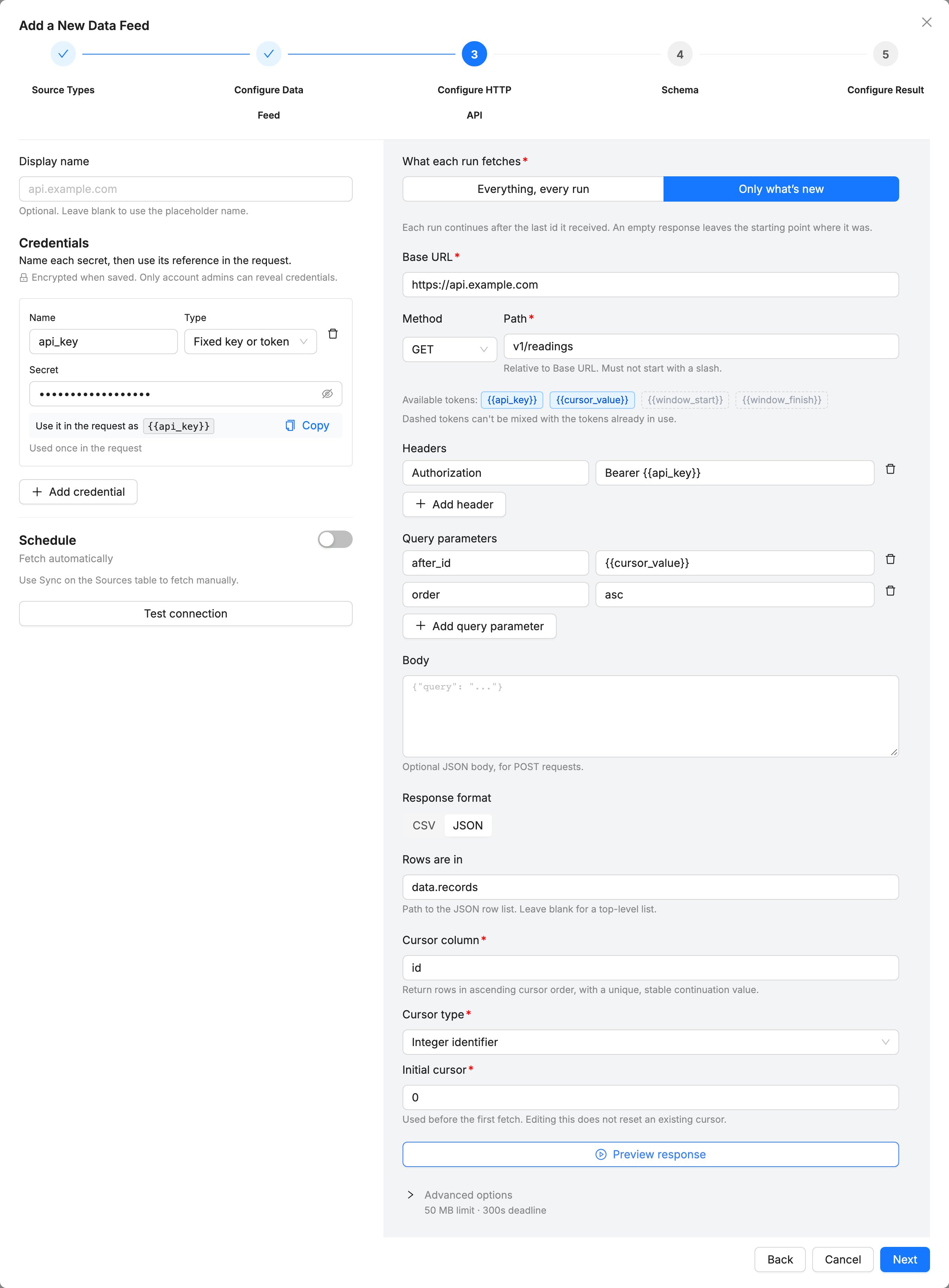
The example in the HTTP API form.
id, recorded_at and value. After a successful fetch it saves cursor 2, so the next fetch sends after_id=2. Previewing the response or fetching a sample does not move the saved cursor.
Using variables in the request
Variables can go in the path, query parameter values, header values or the JSON body. Use credential names and the variables for your chosen approach; the form flags any other{{name}} before you save.
Continue from the last value
Use{{cursor_value}} to request records after the saved cursor, returned in ascending order; see Continue from the last value for choosing a safe cursor.
Fetch the next time window
Use both{{window_start}} and {{window_finish}}, without {{cursor_value}}. For an API with from and to parameters, add them under Query parameters:
Use your API’s parameter names and check that it includes the start, excludes the end and returns the full interval. Mangrove cannot check these filters for you. Bounds are UTC timestamps or Unix epoch values, according to Cursor type.
Set Settle lag (seconds) and Maximum window (seconds) under Advanced options > Window timing.
One response per run
Mangrove reads one response per run and does not follow pagination links or page tokens.- When continuing from the last value, an API that accepts the last returned cursor continues one page per run. To keep up, each run must import records faster than they arrive.
- With time windows, every record in the window must fit in one response. A truncated response can skip records, because the cursor moves to the window’s end. If your API limits page size, set a Maximum window small enough that each window fits; a scheduled source fetches the following windows straight away until it catches up.
- An API that requires following a separate pagination token cannot be fully collected by this connector alone. Contact the Mangrove team to discuss options.
How responses become rows
A CSV response is imported as it is. For JSON, each object in the list at Rows are in becomes a row, with one column per key. Nested objects and lists are kept as JSON text in their column. A response can have up to 500 distinct keys.Limits
Under Advanced options > Request limits:- Response size limit (MB): the most data one response may return. Default and maximum: 50 MB. If a response is larger, the run fails without moving the cursor; request less data, for example with a smaller Maximum window.
- Response deadline (seconds): how long to wait for the response, including any OAuth2 token request. Default: 300 seconds; maximum: 1800.
Troubleshooting
Connection failed
Connection failed
- Check which stage failed in the Test connection result: Credentials or Endpoint request.
- For OAuth2, check the token URL, client ID, client secret and scope. Receiving a token does not guarantee the API accepts it.
- When your API rejects the request with a 4xx status, such as 401 or 404, the result includes the start of its error message.
- Check that network rules allow Mangrove to reach the endpoint.
Cannot save the source
Cannot save the source
Save, or Next when creating a feed, stays disabled until the form is complete. Hover over it, or look under Test connection, for the list of fields to fix; each one is also highlighted. Common causes:
- A credential has no secret entered.
- The base URL or OAuth2 token URL starts with
http://while credentials are configured. Usehttps://. - A credential name is missing, repeated, reserved, or uses characters other than lowercase letters, digits and underscores.
- The request uses a
{{name}}that is neither a credential nor a variable for your chosen approach, or mixes{{cursor_value}}with the window variables. - The path starts with a slash or is a full address, a
GETrequest has a body, or aPOSTbody is not valid JSON. - When switching an existing source to time windows, enter Start the next window at. See Changing fetch modes.
No rows found in the response
No rows found in the response
- Check that Response format matches what the endpoint returns and that the request selects a range containing data.
- For JSON, click Preview response and pick the list of objects for Rows are in. Leave it empty only when the whole response is the list.