> ## Documentation Index
> Fetch the complete documentation index at: https://docs.mangrovesystems.com/llms.txt
> Use this file to discover all available pages before exploring further.
# Activate a SQL data connector
> Connect external SQL databases to automatically sync data into your Mangrove project.
## Connector Overview
Mangrove offers pre-built data connectors for common database systems. Once activated, connectors automatically sync data from your external systems into your project.
* The connectors authenticate and fetch data from the database on a scheduled cadence. This is set to a daily schedule of 11:59pm ET; we plan on making the cadence configurable soon.
* Data is fetched from a set cursor value - this allows only the latest data to be pulled into Mangrove
* SQL queries are run to fetch the data in CSV format
### Available Connectors
* Microsoft SQL Server
* Snowflake
* Snowflake (Secure Share)
Don't see your database? Contact the Mangrove team
to discuss additional connector options.
## Activate a Connector
 **Before you begin**
You will need:
* Database connection details (host, port, database name)
* Database credentials (username and password)
* The event type(s) you want to transform the database data into in Mangrove
### Adding a new SQL-fetch Data Feed
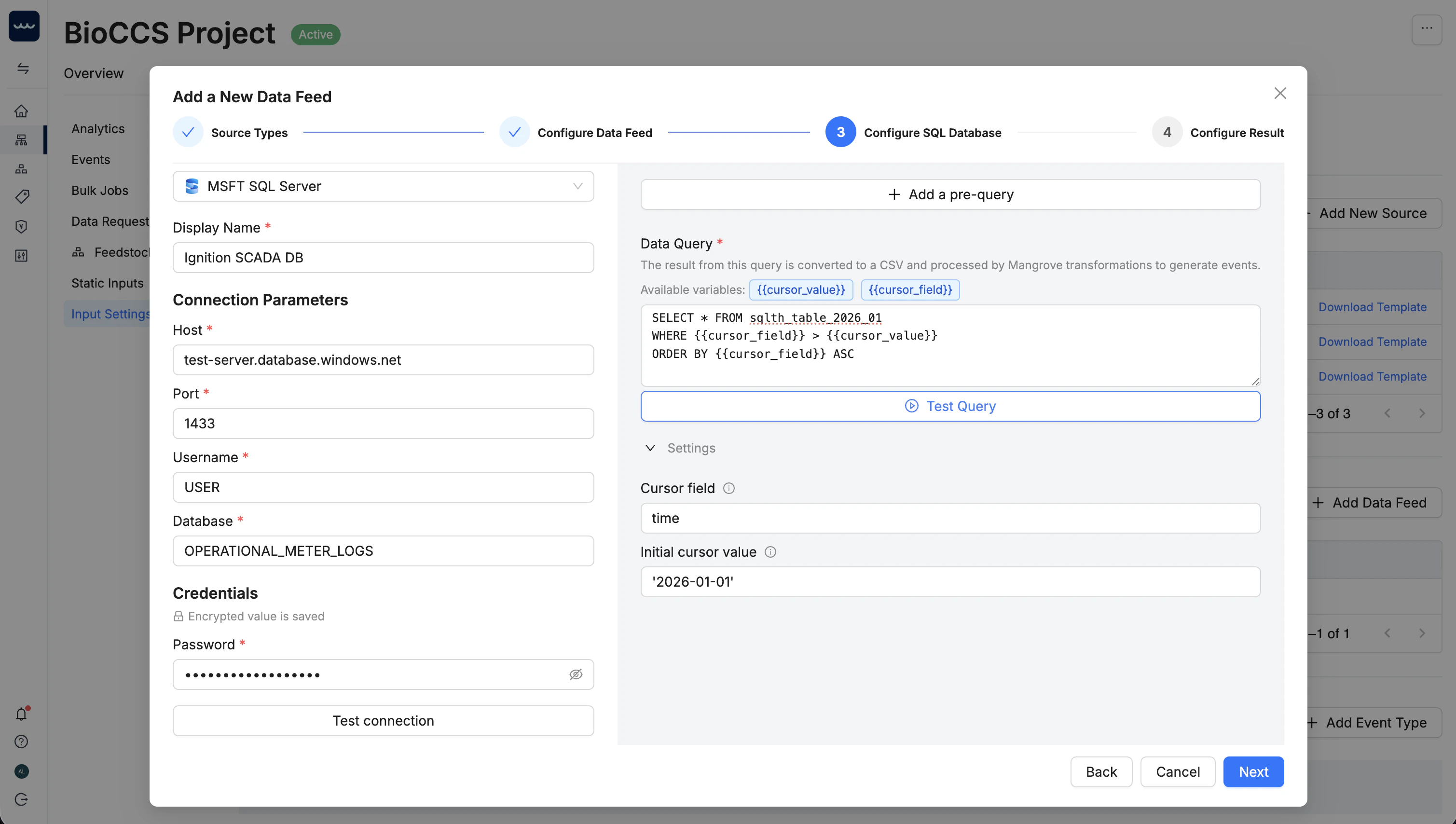
In your project, go to **Data Inputs** > **Input Settings**. Click **Add Data Feed** and select a database connector.
Select your database type.
Enter your database connection details (host, port, database name, username, password), then click **Test Connection** to verify access.
Mangrove connects directly to your database. Check that your firewall allows connections from Mangrove's IPs. Contact support for the current allowlist.
Add the SQL query, and test it to preview the results. You can also add a pre-query to retrieve the right tables for selecting data.
Ensure you have set:
* the cursor field
* an initial cursor value
### Writing SQL Queries
When writing your SQL query, you can reference the following variables. These variables enable dynamic queries based on the database configuration and the SQL pre-query.
| Variable | Description | Example Value |
| --------------------- | -------------------------------------------------------------------------------------- | --------------------- |
| `{{cursor_field}}` | The name of the column used as a cursor to track sync progress | `last_updated` |
| `{{cursor_value}}` | The most recent value fetched for the cursor field (e.g. timestamp or incrementing id) | `2024-05-31T23:59:00` |
| *Pre-query variables* | Any columns returned from your configured pre-query, referenced by name | |
You can reference these variables in your main SQL query using double curly braces, for example:
```sql theme={null}
SELECT * FROM {{my_table_from_prequery}}
WHERE {{cursor_field}} > '{{cursor_value}}'
AND company_id = '{{company_id_from_prequery}}'
ORDER BY {{cursor_field}} ASC
```
## Troubleshooting
**Before you begin**
You will need:
* Database connection details (host, port, database name)
* Database credentials (username and password)
* The event type(s) you want to transform the database data into in Mangrove
### Adding a new SQL-fetch Data Feed
In your project, go to **Data Inputs** > **Input Settings**. Click **Add Data Feed** and select a database connector.
Select your database type.
Enter your database connection details (host, port, database name, username, password), then click **Test Connection** to verify access.
Mangrove connects directly to your database. Check that your firewall allows connections from Mangrove's IPs. Contact support for the current allowlist.
Add the SQL query, and test it to preview the results. You can also add a pre-query to retrieve the right tables for selecting data.
Ensure you have set:
* the cursor field
* an initial cursor value
### Writing SQL Queries
When writing your SQL query, you can reference the following variables. These variables enable dynamic queries based on the database configuration and the SQL pre-query.
| Variable | Description | Example Value |
| --------------------- | -------------------------------------------------------------------------------------- | --------------------- |
| `{{cursor_field}}` | The name of the column used as a cursor to track sync progress | `last_updated` |
| `{{cursor_value}}` | The most recent value fetched for the cursor field (e.g. timestamp or incrementing id) | `2024-05-31T23:59:00` |
| *Pre-query variables* | Any columns returned from your configured pre-query, referenced by name | |
You can reference these variables in your main SQL query using double curly braces, for example:
```sql theme={null}
SELECT * FROM {{my_table_from_prequery}}
WHERE {{cursor_field}} > '{{cursor_value}}'
AND company_id = '{{company_id_from_prequery}}'
ORDER BY {{cursor_field}} ASC
```
## Troubleshooting
- Verify the credentials are correct
- Verify that there isn't any firewall or VPN necessary to access the database.
- Verify the source table contains data
- Check that field mappings are correctly configured
- Ensure the database user has SELECT permissions on the mapped tables
- Check if multiple connectors are pointing to the same table
- Verify the sync schedule isn't running too frequently
## Managing Connectors
You can update the credentials for the connector in the **Input Settings** > **Data Feed**, then click **Edit** beside the SQL source to modify connection details.